Build an NVIDIA k8s Lab on an Old Gaming Laptop
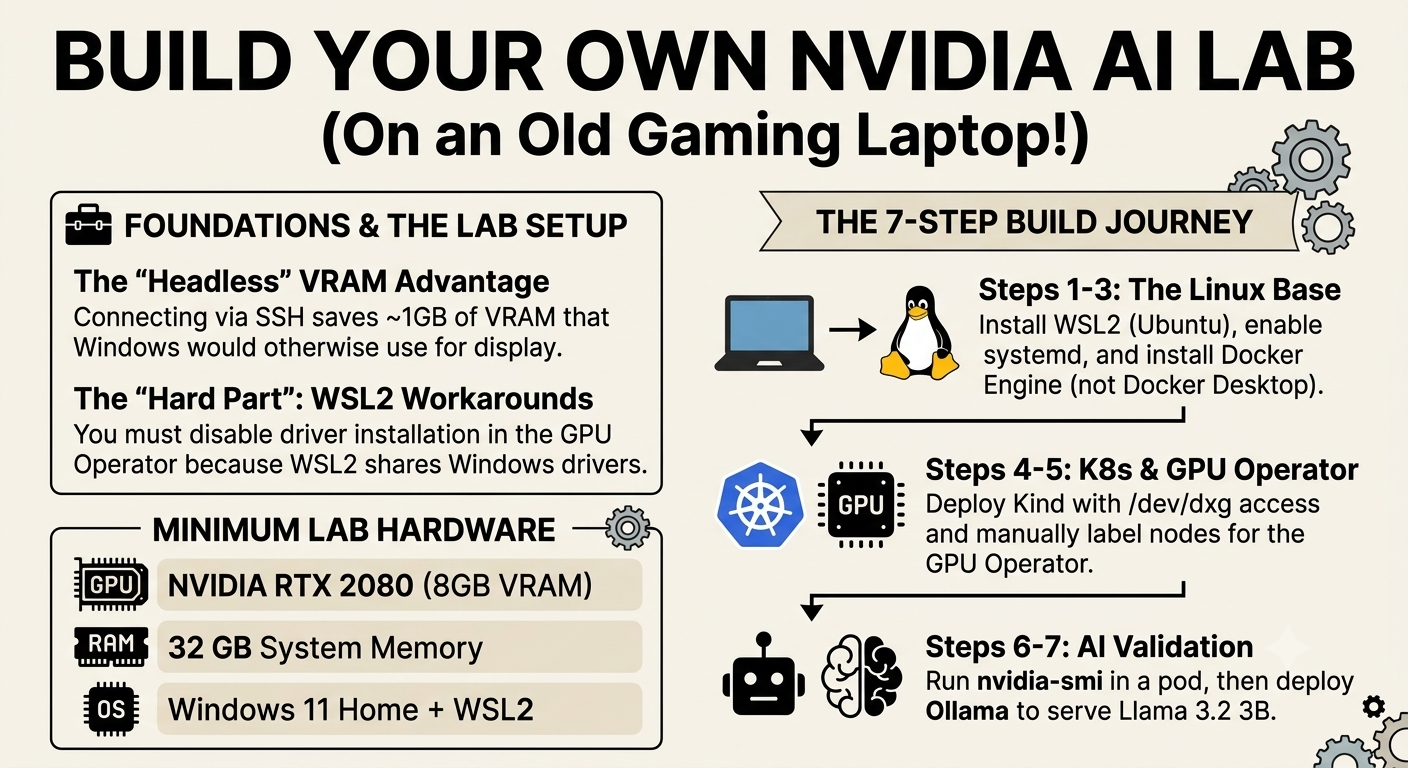
Table of Contents
Turn an old Windows gaming laptop into a Kubernetes AI lab to prepare for the NVIDIA-Certified Associate: AI Infrastructure and Operations (NCA-AIIO) exam.
The guide goes from WSL2 and Docker through Kind and the GPU Operator. At the end — Step 7 — you run a small LLM on the GPU (Ollama with a 3B model) to confirm the full stack works for real AI workloads.
Part 2: GPU Operations on an NVIDIA Kubernetes Home Lab — twelve follow-up labs on DCGM, time-slicing, Triton, TensorRT, scheduling, and profiling.
Why I Built This Lab#
If you work in an industry that is moving to AI workloads, knowing the NVIDIA AI infrastructure stack helps. That is why I decided to study it.
Earlier in my career I was a Red Hat Certified Instructor (RHCI), a Red Hat Certified Examiner (RHCX), and a Microsoft Certified Trainer (MCT). From that work I learned one thing: the best way to learn a vendor’s technology is to study for and pass the certification exam.
The Associate exam — NVIDIA-Certified Associate: AI Infrastructure and Operations (NCA-AIIO) — is not a hands-on lab. It is a timed multiple-choice test about how the parts fit together. You can pass it using slides and documentation alone.
This lab is extra exam preparation, not a replacement. You still need the official study guide, documentation, and practice questions. What the lab adds is hands-on practice with NVIDIA tools — without access to expensive data-center hardware. An old gaming laptop is enough.
The laptop used in this article is an HP Omen 17:
- NVIDIA GeForce RTX 2080 mobile GPU, 8192 MiB VRAM, driver 581.83
- Intel Core i9-9880H CPU
- 32 GB of system RAM
- Windows 11 Home (no Hyper-V manager, no Pro features)
That is enough for this lab. With 32 GB RAM you can give WSL2 16–24 GB — plenty for a small Kubernetes cluster. With 8 GB VRAM you cannot run large language models well, but you can validate the GPU Operator, schedule CUDA pods, and try Triton Inference Server.
Working Remotely Over SSH Saves GPU Memory#
It is worth running this lab over SSH from another computer — not only for convenience, but to free GPU memory that Windows would otherwise use.
Enable OpenSSH on the laptop. Connect from a Mac or Linux PC. Sign out of Windows or close GPU-heavy apps. Run commands through WSL over SSH. That way the GPU serves the cluster, not the Windows desktop.
This lab was built and tested that way. At idle, the Windows desktop uses about 84 MiB of VRAM. In headless mode, most of that memory stays free for a 3B model.
The Hard Part: GPU Operator Inside WSL2#
Installing Kubernetes in WSL2 and passing a GPU to Docker is easy today. The tricky part is getting the NVIDIA GPU Operator to work inside a local Kubernetes cluster on WSL2.
Why It Is Difficult#
The GPU Operator was built for bare-metal servers and cloud VMs. By default it expects to:
- Use Node Feature Discovery (NFD) to find a physical GPU on the PCI bus.
- Install the NVIDIA kernel driver on the node.
Neither works in WSL2. The driver is already on Windows and is shared with Linux through Microsoft’s WSL GPU layer. There is no real PCI bus inside the Kubernetes node — and with Kind, the node is just a Docker container. The Operator looks for hardware that is not there and gets stuck.
How We Fix It#
To deploy the Operator in a local cluster (Kind or K3s work best on WSL2), we change three things in the Helm chart:
- Disable driver installation. Set
driver.enabled=false. The driver must come from WSL2/Windows, not from the Operator. NVIDIA’s CUDA on WSL guide says the Windows driver is exposed aslibcuda.soin WSL. Do not install a Linux display driver inside WSL. - Label the node manually. GPU auto-detection fails in WSL2, so add a label
by hand:
kubectl label node <node-name> feature.node.kubernetes.io/pci-10de.present=true(10deis NVIDIA’s PCI vendor ID). - Configure the runtime. Set up
containerdinside the Kubernetes node to usenvidia-container-runtime.
The Lab Architecture#
We skip Docker Desktop. It uses too much memory and is unreliable on Windows Home. Instead we use a lighter stack:
Windows 11 Home (NVIDIA driver)
      └── WSL2 (Ubuntu, systemd enabled)
            └── Docker Engine + NVIDIA Container Toolkit
                  └── Kind (Kubernetes-in-Docker)
                        └── NVIDIA GPU Operator (customized Helm values)
                              └── CUDA / Triton test workloads
Step 1: Prepare Windows 11 Home#
Windows Home has no Hyper-V manager, but WSL2 only needs the virtualization platform, which is included.
- Install Windows Subsystem for Linux
- Install the latest NVIDIA drivers (Game Ready) on Windows itself.
Step 2: Install WSL2 and Ubuntu 26.04 LTS#
Open Windows Terminal (PowerShell) as Administrator and run:
# Install Ubuntu 26.04
wsl --install -d Ubuntu-26.04
After installation, set your Linux username and password.
Enable systemd (critical for Kubernetes)#
Inside the Ubuntu shell, create the WSL configuration file:
sudo vi /etc/wsl.conf
Add the following:
[boot]
systemd=true

[network]
generateHosts = true
Save with Ctrl+O, Enter, then exit with Ctrl+X.
Exit Ubuntu (exit) and restart WSL from PowerShell:
wsl --shutdown
Relaunch Ubuntu and confirm systemd is active:
systemctl is-system-running
Step 3: Install Docker and the NVIDIA Container Toolkit#
Install Docker directly inside Ubuntu. Do not use Docker Desktop on Windows.
Install Docker Engine#
📘 Per official docs — follow the Docker Engine install guide for Ubuntu . The convenience script from Docker’s docs is the fastest path:
curl -fsSL https://get.docker.com -o get-docker.sh
sudo sh get-docker.sh

# Allow running Docker without sudo
sudo usermod -aG docker $USER
The script installs
docker-ce,docker-ce-cli,containerd.io, and the compose/buildx plugins — same as the manual apt steps. Use the linked guide if you need to pin a specific version.
Important: Restart the Ubuntu terminal so the group membership takes effect.
Install the NVIDIA Container Toolkit#
This lets Docker containers use your RTX 2080 through WSL2. Follow the NVIDIA Container Toolkit 1.19.1 install guide :
curl -fsSL https://nvidia.github.io/libnvidia-container/gpgkey | \
  sudo gpg --dearmor -o /usr/share/keyrings/nvidia-container-toolkit-keyring.gpg \
  && curl -s -L https://nvidia.github.io/libnvidia-container/stable/deb/nvidia-container-toolkit.list | \
    sed 's#deb https://#deb [signed-by=/usr/share/keyrings/nvidia-container-toolkit-keyring.gpg] https://#g' | \
    sudo tee /etc/apt/sources.list.d/nvidia-container-toolkit.list

sudo apt-get update
sudo apt-get install -y nvidia-container-toolkit

# Configure Docker to use the NVIDIA runtime
sudo nvidia-ctk runtime configure --runtime=docker
sudo systemctl restart docker
Verify the GPU Works#
Run a test container. If setup is correct, it prints the GPU status:
docker run --rm --gpus all nvidia/cuda:13.3.0-base-ubi9 nvidia-smi
Expected output (numbers vary with desktop load):
NVIDIA-SMI 580.108                Driver Version: 581.83         CUDA Version: 13.0
|   0  NVIDIA GeForce RTX 2080        On  |   00000000:01:00.0  On |                  N/A |
| N/A   38C    P8             11W /  150W |      84MiB /   8192MiB |      0%      Default |
...
|    0   N/A  N/A              34      G   /Xwayland                             N/A      |
The /Xwayland line is normal — it is the Windows desktop using a small amount
of VRAM. What matters is that the container sees GeForce RTX 2080 and
8192 MiB.
Step 4: Deploy Kubernetes with Kind#
Kind runs Kubernetes nodes as Docker containers. It is the lightest way to run a cluster on 32 GB of RAM.
Install kubectl and Kind#
📘 Per official docs — install kubectl and Kind per the Kind quick-start
installation section
:
# Install kubectl
curl -LO "https://dl.k8s.io/release/$(curl -L -s https://dl.k8s.io/release/stable.txt)/bin/linux/amd64/kubectl"
sudo install -o root -g root -m 0755 kubectl /usr/local/bin/kubectl

# Install Kind (use the latest release from the quick-start page)
curl -Lo ./kind https://kind.sigs.k8s.io/dl/v0.30.0/kind-linux-amd64
chmod +x ./kind
sudo mv ./kind /usr/local/bin/kind
Create a Cluster Config with GPU Access#
Create kind-config.yaml:
apiVersion: kind.x-k8s.io/v1alpha4
kind: Cluster
nodes:
- role: control-plane
  extraMounts:
  - hostPath: /dev/dxg
    containerPath: /dev/dxg
  - hostPath: /usr/lib/wsl
    containerPath: /usr/lib/wsl
/dev/dxg is the WSL2 GPU device. /usr/lib/wsl has the driver libraries.
Mounting both into the Kind node makes the GPU available inside Kubernetes.
Launch the cluster:
kind create cluster --config kind-config.yaml
Success looks like this (the node image version depends on your Kind release):
Creating cluster "kind" ...
 ✓ Ensuring node image (kindest/node:v1.36.1) 🖼
 ✓ Preparing nodes 📦
 ✓ Writing configuration 📜
 ✓ Starting control-plane 🕹️
 ✓ Installing CNI 🔌
 ✓ Installing StorageClass 💾
Set kubectl context to "kind-kind"
Step 5: Install the NVIDIA GPU Operator#
This is the main step. We work around WSL2 limits: the Operator must not install drivers (they are already on Windows) or the toolkit (we set that up on the host).
Install Helm#
curl https://raw.githubusercontent.com/helm/helm/main/scripts/get-helm-3 | bash
Add the NVIDIA Helm Repository#
helm repo add nvidia https://helm.ngc.nvidia.com/nvidia
helm repo update
Configure containerd for NVIDIA (🔧 WSL workaround)#
Normally the GPU Operator toolkit component installs the NVIDIA Container
Toolkit and configures containerd on each node. On WSL2/Kind that does not work
with the virtualized driver, so we disable it and do the setup by hand — install
the toolkit inside the Kind node and point containerd at the nvidia runtime:
# Install prerequisites inside the node
docker exec kind-control-plane bash -c \
  'apt-get update -qq && apt-get install -y -qq gnupg curl ca-certificates > /dev/null 2>&1'

# Add the NVIDIA Container Toolkit repo and install
docker exec kind-control-plane bash -c '
  curl -fsSL https://nvidia.github.io/libnvidia-container/gpgkey | \
    gpg --dearmor -o /usr/share/keyrings/nvidia-container-toolkit-keyring.gpg && \
  curl -s -L https://nvidia.github.io/libnvidia-container/stable/deb/nvidia-container-toolkit.list | \
    sed "s#deb https://#deb [signed-by=/usr/share/keyrings/nvidia-container-toolkit-keyring.gpg] https://#g" | \
    tee /etc/apt/sources.list.d/nvidia-container-toolkit.list > /dev/null && \
  apt-get update -qq && apt-get install -y -qq nvidia-container-toolkit'

# Configure containerd to use the nvidia runtime as default
docker exec kind-control-plane nvidia-ctk runtime configure \
  --runtime=containerd --set-as-default

# Restart containerd to pick up the new config
docker exec kind-control-plane systemctl restart containerd
Verify the runtime is active:
docker exec kind-control-plane containerd config dump | grep default_runtime_name
# Expected: default_runtime_name = 'nvidia'
Make NVIDIA Libraries Visible Inside the Node (🔧 WSL workaround)#
On the WSL host, ldconfig already knows about /usr/lib/wsl/lib (where the
driver libraries live). The Kind node does not. Without this fix, NVML returns
ERROR_LIBRARY_NOT_FOUND. Add the path:
docker exec kind-control-plane bash -c \
  'echo /usr/lib/wsl/lib > /etc/ld.so.conf.d/wsl.conf && ldconfig'
Prepare Custom Values#
Create gpu-operator-values.yaml — tested values for WSL2/Kind. GFD, DCGM, and
MIG Manager are disabled because they need PCI hardware that does not exist in
WSL2:
driver:        { enabled: false }   # Driver lives in Windows / WSL — do NOT install
toolkit:       { enabled: false }   # Containerd configured manually above
devicePlugin:  { enabled: true  }
dcgm:          { enabled: false }   # No bare-metal DCGM in WSL
dcgmExporter:  { enabled: false }
nfd:           { enabled: true  }
gfd:           { enabled: false }   # GFD reads /sys/bus/pci — absent in WSL
migManager:    { enabled: false }   # No MIG support on consumer GPUs
Label the Node for NFD (🔧 WSL workaround)#
NFD cannot find the GPU — there is no PCI bus in WSL2/Kind. Add the label by hand:
kubectl label node kind-control-plane \
  feature.node.kubernetes.io/pci-10de.present=true --overwrite
Deploy the Operator#
Pin the version for repeatability (check latest with
helm search repo nvidia/gpu-operator --versions):
helm install gpu-operator nvidia/gpu-operator \
  -n gpu-operator --create-namespace \
  -f gpu-operator-values.yaml --version v26.3.3
Watch the pods come up:
kubectl get pods -n gpu-operator
All pods should be Running or Completed within 1–2 minutes. Healthy output
looks like this:
NAME                                                         READY   STATUS      RESTARTS   AGE
gpu-operator-57d75775c8-f9jnk                                1/1     Running     0          58s
gpu-operator-node-feature-discovery-gc-847bb8f7b6-mmvcs      1/1     Running     0          58s
gpu-operator-node-feature-discovery-master-d98f944cd-mr7s8   1/1     Running     0          58s
gpu-operator-node-feature-discovery-worker-kcdtj             1/1     Running     0          58s
nvidia-cuda-validator-8j2lg                                  0/1     Completed   0          26s
nvidia-device-plugin-daemonset-qq9hb                         1/1     Running     0          28s
nvidia-operator-validator-kr5f5                              1/1     Running     0          29s
Confirm the GPU is schedulable:
kubectl get node kind-control-plane -o jsonpath='{.status.allocatable}' | grep nvidia
# Expected: nvidia.com/gpu":"1"
Example output:
{"cpu":"16","ephemeral-storage":"1055762868Ki",...,"nvidia.com/gpu":"1","pods":"110"}
Step 6: Test — Schedule a GPU Pod#
Run a test pod that calls nvidia-smi from inside Kubernetes.
Create test-gpu-pod.yaml:
apiVersion: v1
kind: Pod
metadata:
  name: cuda-test
spec:
  restartPolicy: OnFailure
  containers:
  - name: cuda-container
    image: nvidia/cuda:13.3.0-base-ubi9
    command: ["nvidia-smi"]
    resources:
      limits:
        nvidia.com/gpu: 1   # Request a GPU from the Operator
Apply it and read the logs:
kubectl apply -f test-gpu-pod.yaml
kubectl logs cuda-test
Example log output:
NVIDIA-SMI 580.108                Driver Version: 581.83         CUDA Version: 13.0
|   0  NVIDIA GeForce RTX 2080        On  |   00000000:01:00.0  On |                  N/A |
| N/A   41C    P8             11W /  150W |      84MiB /   8192MiB |      0%      Default |
If the log shows GeForce RTX 2080, the full stack works: GPU Operator, device plugin, and CUDA inside Kubernetes — on a Windows 11 Home laptop.
Step 7: Run a Small LLM on the GPU#
nvidia-smi in a pod is a good smoke test. The real goal is to run AI
workloads. We deploy Ollama as a Kubernetes Deployment with a GPU, then pull
and run a small model that fits in 8 GB of VRAM.
apiVersion: apps/v1
kind: Deployment
metadata:
  name: ollama
  labels: { app: ollama }
spec:
  replicas: 1
  selector:
    matchLabels: { app: ollama }
  template:
    metadata:
      labels: { app: ollama }
    spec:
      containers:
      - name: ollama
        image: ollama/ollama:latest
        ports:
        - containerPort: 11434
        resources:
          limits:
            nvidia.com/gpu: 1          # the only GPU-specific line needed
        volumeMounts:
        - name: models
          mountPath: /root/.ollama
      volumes:
      - name: models
        emptyDir: {}
---
apiVersion: v1
kind: Service
metadata:
  name: ollama
spec:
  selector: { app: ollama }
  ports:
  - port: 11434
    targetPort: 11434
kubectl apply -f ollama.yaml
kubectl rollout status deploy/ollama --timeout=300s
Ollama found the GPU automatically. No extra config — the device plugin and driver libraries were enough. From the pod log:
msg="inference compute" library=CUDA compute=7.5 name=CUDA0
  description="NVIDIA GeForce RTX 2080" driver=13.0 pci_id=0000:01:00.0
  type=discrete total="8.0 GiB" available="6.9 GiB"
available="6.9 GiB" shows the ~1 GB Windows uses from VRAM. Still enough for a
3B model.
Pull a model and run a prompt. Llama 3.2 3B is about 2.0 GB:
POD=$(kubectl get pods -l app=ollama -o jsonpath='{.items[0].metadata.name}')
kubectl exec "$POD" -- ollama pull llama3.2:3b
kubectl exec "$POD" -- ollama run llama3.2:3b \
  "In two sentences, explain what the NVIDIA GPU Operator does in a Kubernetes cluster."
The model answered:
The NVIDIA GPU Operator is a Kubernetes custom resource definition (CRD) that automates the deployment and management of NVIDIA GPUs on Kubernetes clusters, allowing users to easily provision and manage GPUs for their containerized applications. It provides a self-service model for provisioning GPUs, along with tools and features like node affinity and scheduling, to ensure optimal performance and efficiency in GPU-accelerated workloads.
Check that it ran on the GPU, not the CPU:
kubectl exec "$POD" -- ollama ps
NAME           ID              SIZE      PROCESSOR    CONTEXT    UNTIL
llama3.2:3b    a80c4f17acd5    2.6 GB    100% GPU     4096       4 minutes from now
On the WSL host, nvidia-smi shows the model in VRAM and the llama-server
process on the GPU:
|   0  NVIDIA GeForce RTX 2080        On  |   00000000:01:00.0  On |                  N/A |
| N/A   44C    P5             16W /  150W |    2649MiB /   8192MiB |      0%      Default |
...
|    0   N/A  N/A             226      C   /llama-server                         N/A      |
100% GPU, 2.6 GB in VRAM, 2649 MiB on the card. The first prompt takes
about a minute (cold model load). Later prompts answer in seconds while the model
stays loaded (Ollama’s default 5-minute keep-alive).
A real LLM, served through Kubernetes, on a used gaming laptop. Try
qwen2.5:3b, phi3:mini, or gemma2:2b within the 8 GB limit. Avoid 7B/8B
models — they will run out of VRAM.
When you’re done, free the GPU with:
kubectl delete -f ollama.yaml
References#
Steps in this guide were checked against these official sources. Where we differ
from the docs (for example, headless wsl --install), see the workarounds table
above.
NVIDIA
- CUDA on WSL User Guide
— WSL GPU model: Windows driver only, no Linux driver in WSL;
libcuda.soexposure;/usr/lib/wsl/libpath fix for ourldconfigstep. - NVIDIA Container Toolkit — Installation Guide (v1.19.1)
— apt repository setup,
nvidia-ctk runtime configure, and the “Configuring containerd (for Kubernetes)” section we mirror inside the Kind node. - NVIDIA GPU Operator — Getting Started
— Helm install, the
driver/toolkit/devicePluginvalues, ClusterPolicy, and the rationale fordriver.enabled=false/toolkit.enabled=falsewhen a driver and runtime are already present on the host.
Microsoft / WSL
- Install WSL
and
Manual install steps
— the optional features (
Microsoft-Windows-Subsystem-Linux,VirtualMachinePlatform) we enabled via DISM. - systemd support in WSL
— the
[boot] systemd=truesetting that Kubernetes needs. - Advanced settings configuration (
wsl.confand.wslconfig) — default user,generateHosts, and the optionalvmIdleTimeout. - microsoft/WSL releases — the standalone WSL MSI used for the headless install.
Kubernetes ecosystem
- kind — Quick Start
and
kind configuration
— cluster config and
extraMounts. - Docker Engine — Install on Ubuntu — the apt-based Docker Engine install (we use this instead of Docker Desktop).
- Helm — Installing Helm .
- Kubernetes — Schedule GPUs
— how
nvidia.com/gpuresource requests and device plugins fit together.